Draw a course
Course setting
Draw a course
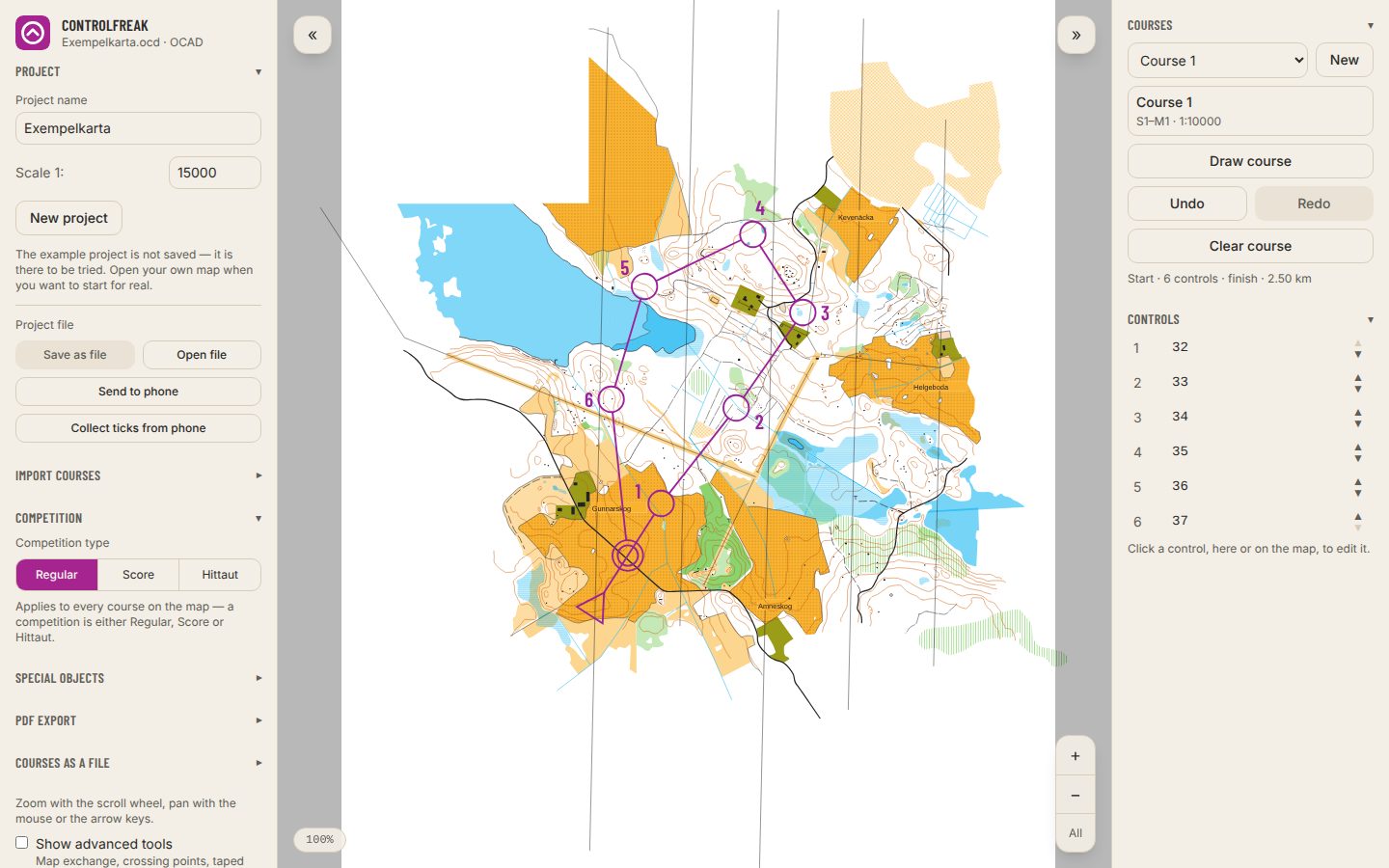
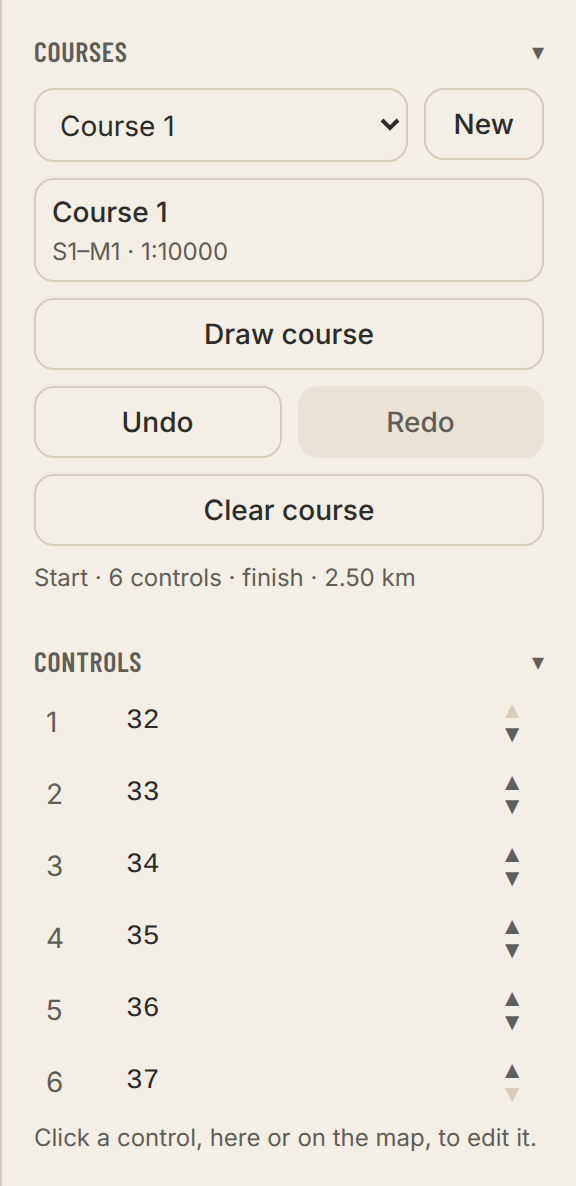
Courses are chosen in the course panel on the right and drawn with the toolbar on top of the map. Each course has its own controls, but a control can be shared by several courses.
- 1Press New to add a course, or use the one that is already there.
- 2Turn on Draw course in the toolbar and click on the map. The first click sets the start; after that the controls are placed in the order you click.
- 3Press Place finish and click where the finish should be.
- 4Press Done when the course is finished.
- Undo / Redo
- The arrows at the right end of the toolbar take back every step. Ctrl+Z and Ctrl+Shift+Z (⌘ on a Mac). Esc ends the tool in use.
- Move
- Drag a control, the start or the finish. To hit the right spot, click the control, the start or the finish: the dialog that opens has a zoomed-in map where you drag the symbol to where it belongs. If the point is shared with other courses, the app asks whether to move it for all of them or just this one.
- The numbers
- Placed automatically, clear of legs and neighbours, and on OCAD and Mapper maps where the map is light enough to read them against: not over buildings, olive green, roads or map text when a better side exists. Drag a number to move it yourself.
- Adding a control in between
- Drag the plus sign in the middle of a leg. A new control lands where you let go, between the two controls. While you drag, every control on the map shows, also those in other courses. Let go on one of them and it joins the course instead of a new one being placed.
- The same control again
- If you click a control that is already in the course while drawing, the app asks whether to add it once more, for example for a butterfly loop.
- Clear and delete
- Under … next to New. The app asks first, and Undo brings it back.
- Show in 3D
- Under … next to New, with Show advanced tools on, for OCAD and Mapper maps. Opens the course in its own window, with the map and the course laid on a height model. Drag to rotate, right-click and drag (or drag with two fingers) to pan, scroll or pinch to zoom. Show route choices shows the fastest route choices, for the Whole course or for a leg you pick in the list next to it, and Vertical exaggeration makes the heights clearer. The map file holds no heights, so they are estimated from the contours and their slope.
- The status line below the course shows the number of controls and the course length.
- In Hittaut the button is called Place checkpoints, and First number decides which number the next checkpoint gets.