Print as PDF
Out of the app
Print as PDF
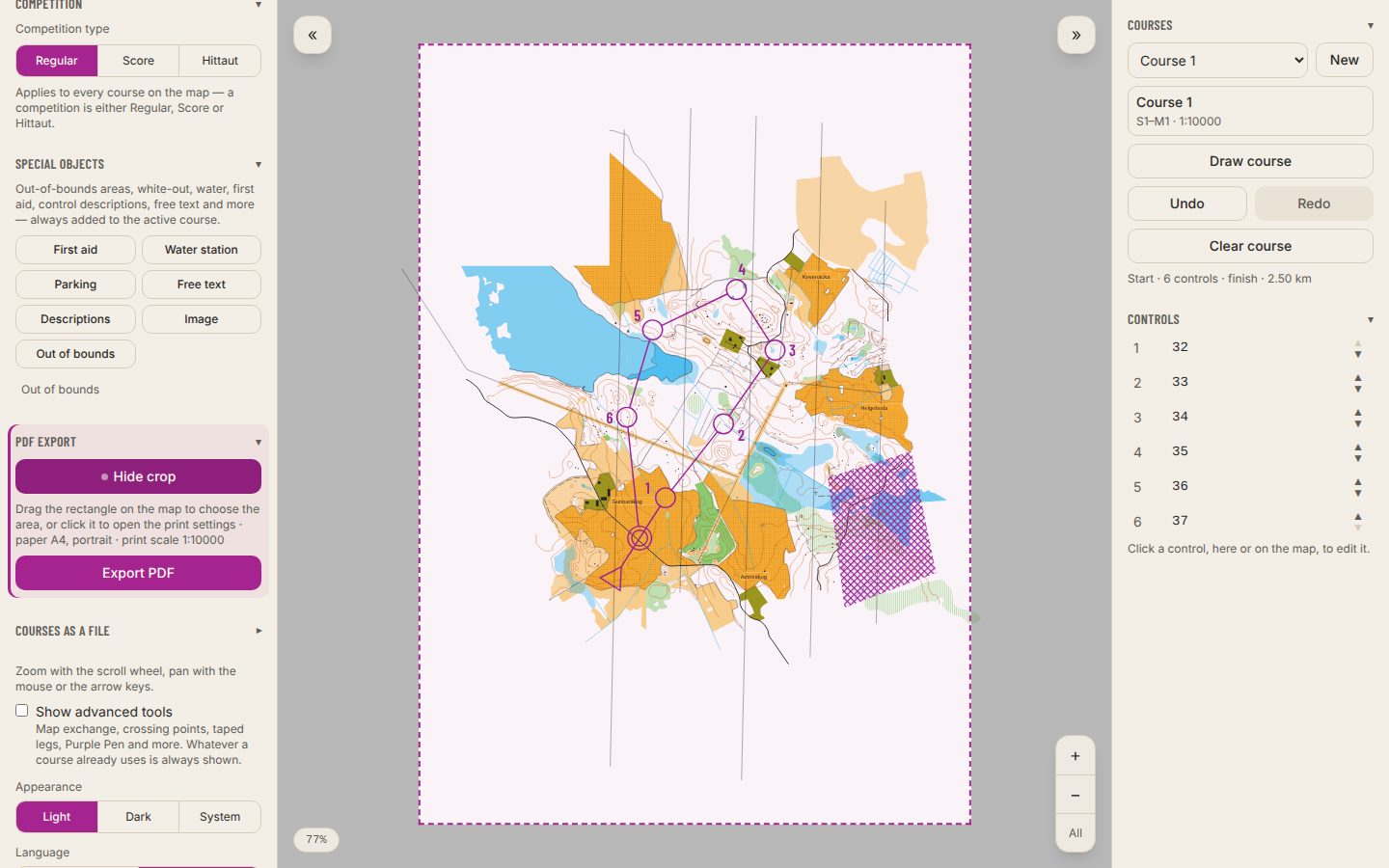
The course map is exported as a PDF at the right print scale, on one page.
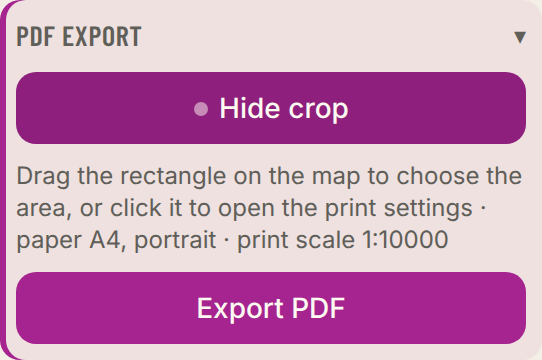
- 1Unfold Create PDF and press Show PDF crop.
- 2Drag the handle or the frame to where the course is. Click the handle for paper and orientation.
- 3Press Export PDF.
- Fit automatically
- The crop follows the controls of every course that does not have its own.
- Resolution
- Draft (150 dpi), normal print (300 dpi) or print quality (600 dpi). Advanced.
- Map exchanges and variations
- Pick a part or a variation under the course to print just that map.
- All courses at once
- Export all courses makes one PDF with a page per course, each with its own crop and paper. With course groups you can pick a group under Courses to print. Map exchanges give a page per part and forked courses one per variation. Choose One file per course to get a PDF per course instead, named as when the course is exported on its own, so you easily print the right number of each.