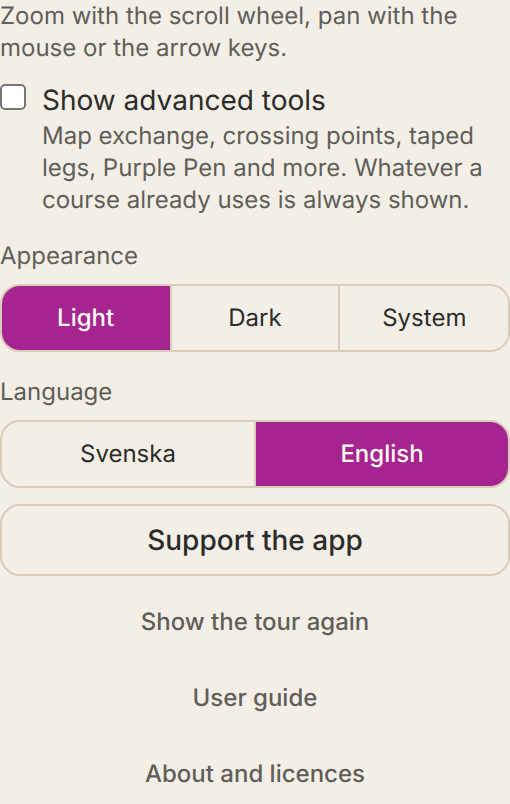
Appearance, language and help
At the top of the page is the family's row: the mark and the app's name, the map's name, and on the right the buttons for the other apps, the language, dark mode, the user guide and feedback. Under the gear (⚙) at the top of the left panel are the rest of the settings.
- Show advanced tools
- See Advanced tools above.
- Auto mode
- A control placed or dragged near a control feature moves onto it and gets its control description filled in. That covers every point symbol on the map (such as knolls, boulders, pits, marshes and towers), cliffs and other line features that are a feature in themselves, crossings and junctions between paths, roads, streams, ditches, fences and walls, their ends, bends in streams, ditches and paths, power line pylons, reentrants and spurs in the contours, and small hills and depressions drawn as closed contours. A symbol with no counterpart among the IOF symbols snaps without a description, and the box shows the symbol's name. When there are several of the same kind inside the circle, column C says which one (for example Northern or Middle), when that can be said without doubt. A box shows the description as pictograms and text, and Release moves the control back to where you clicked or dropped it, with the description it had before. With no control feature nearby the control stays where you clicked or dropped it, as usual. A moved control gets columns C–G replaced with the new feature's; column H stays. Auto mode also cuts gaps in circles and legs where they would hide important detail: single boulders, pits and small knolls, junctions of paths, ditches and fences, and the ends of such lines. Contours, areas, stony ground, bushes and small trees are never cut, nor a path the leg only crosses. A circle gets at most two gaps and 60°, a leg at most three, besides where it runs through another control's circle. A gap in a circle or leg reaches over the whole symbol, also a wide pit or boulder, and two gaps with only a short bit of line between them become one. Where two legs cross, the earlier one is cut so the later one runs whole. The gaps are worked out again when a control is placed, moved or released, when the start or finish moves, when a control is removed from a course and when a leg is bent. Gaps you change by hand are never touched, and Cut gaps automatically under More in the control dialog turns auto mode back on. Moving a control in the control's box does not snap it. Off by default, for OCAD and Mapper maps.
- The apps
- The button with four squares at the top right shows the family's other apps: ControlFreak Event, ControlFreak Start, ControlFreak Run and ControlFreak MCP, and the hub controlfreak.se.
- Dark mode
- The button with the moon at the top right switches between light and dark. Without a choice of your own, the app follows the computer.
- Language
- The button with the language's code at the top right: Swedish, English, Norwegian, Finnish or Czech.
- Show the tour again
- Walks through the app part by part on the example map.
- Send feedback
- The button with the speech bubble at the top right. Write to us if something is wrong or missing. Name and email are optional. Only what you write is sent, never the map or the courses.