Projects and saving
Getting started
Projects and saving
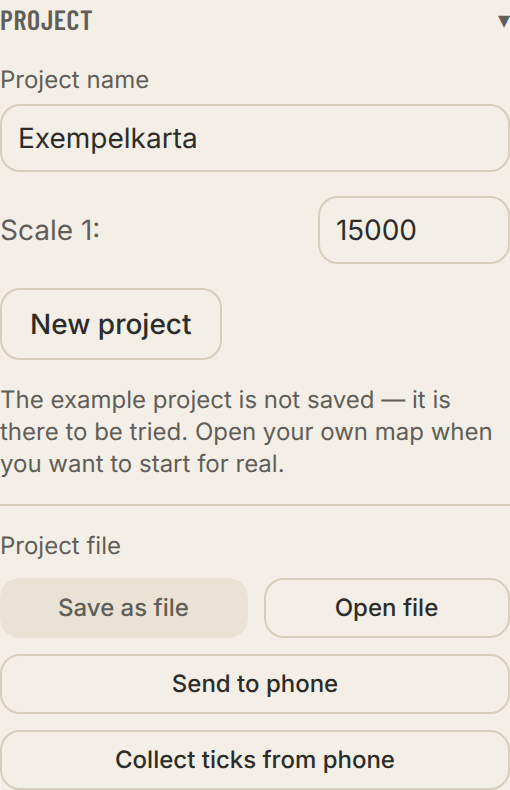
A project is one course-setting job with a map attached. The work is saved automatically in the browser, and the map stays there too, so the project opens straight away next time.
- Project name
- Printed on the maps and written into the files you export.
- Switch project
- If the map is still in the browser the project opens directly. Otherwise the app asks for the map file.
- New project
- Start again with another map. What you have done stays in its own project.
- Save as file
- A backup, or a way to move the work to another computer. The map is not included, only its name.
- Save automatically to a folder…
- In Chrome and Edge. Pick a folder that Google Drive, Dropbox, Proton Drive or similar syncs. The project you work in is saved there by itself, and the map goes into the subfolder Kartor. On another computer, pick the same folder and open the project from the list Projects in the folder on the start screen. If the project changed on both computers before the cloud could sync, the app asks which version to keep, and the other is saved as a copy in the folder. Preferably wait for the cloud to sync before you go on at the other computer. The app sends nothing itself; the cloud's own app does that.
- Save with map
- The project and the map file in one package — a file to send to the phone or to another course setter.
- Open file
- Opens a saved project file or a map package.
- Reload the map
- Pick the map file again, for example after it has been redrawn. The course work stays.
- If the browser is not allowed to open the map for you, the project shows under Pick up where you left off. Pick the same map file again — it is recognised by its content, even if it has been renamed or moved. The three latest projects are listed there; reach older ones with Show all … projects.
- Save a project file now and then. If someone clears the browser's data, what only lived there is gone.