Special objects
Course setting
Special objects
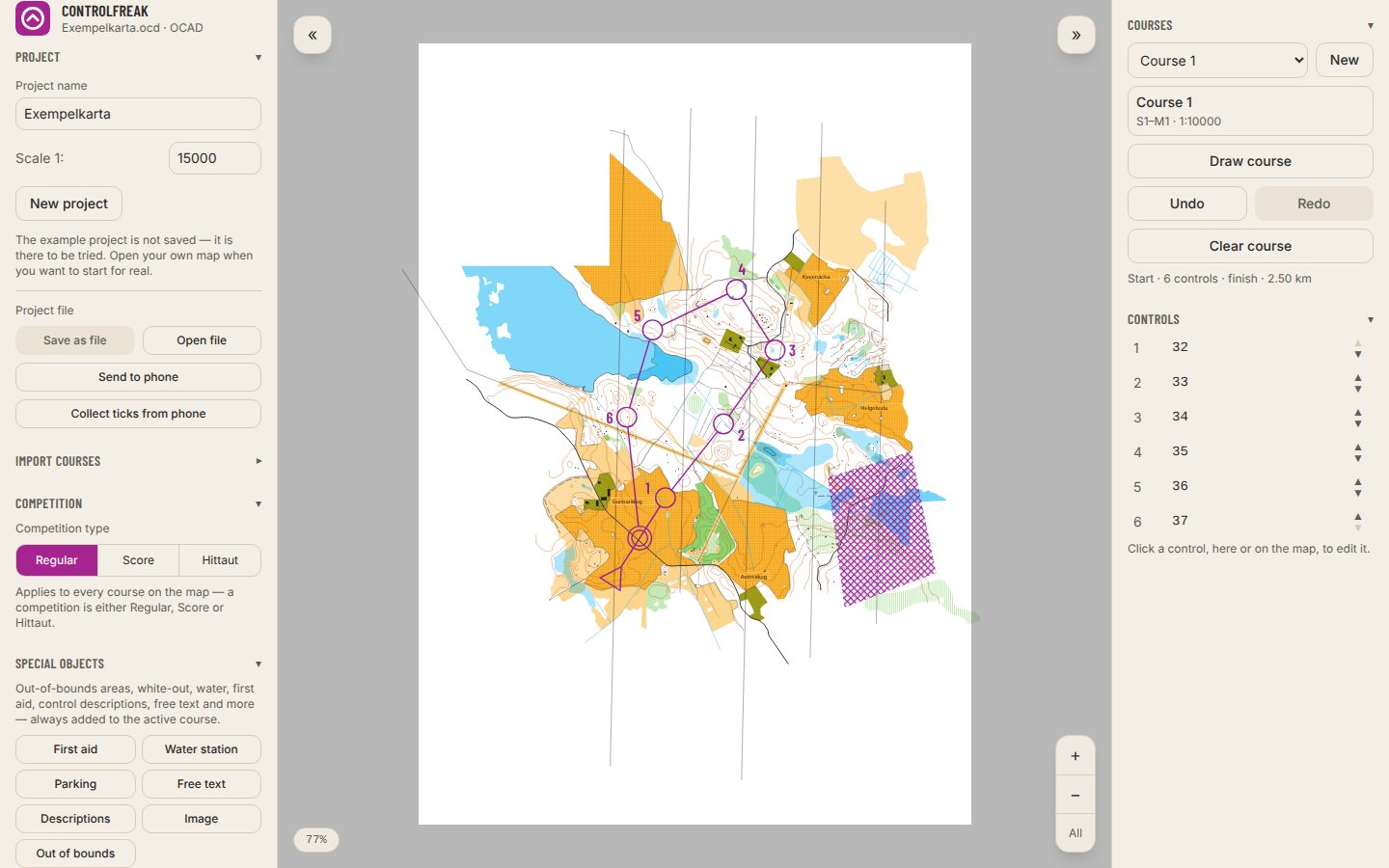
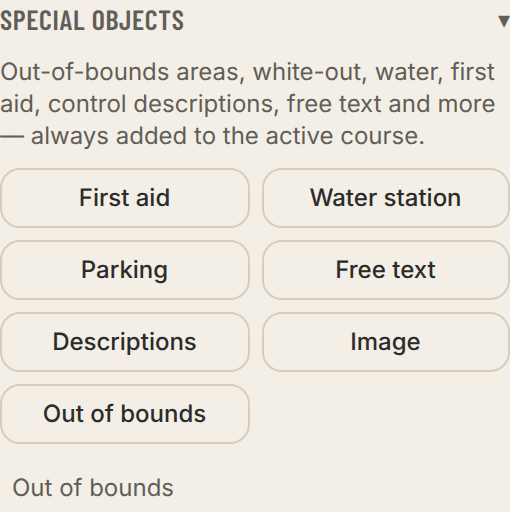
What is printed on the course map besides the course: out-of-bounds areas, white-out, water, first aid, free text, images and more. Objects go on the active course, all courses, a course group or selected courses.
- 1Press Special objects in the toolbar and pick what to place.
- 2With several courses, choose at the bottom of the menu where new objects go, under Goes on: Active course, All courses, a group or Selected courses. The choice applies to everything you place until you change it, and it is shown on the button and in the line under the toolbar while you place.
- 3A symbol is placed with one click. A line takes two clicks, start and end. When you place Free text, the box where you type the text opens at once. There you also pick the Text colour: purple like the course, black, white or any colour; it carries over to the PDF.
- 4An area, such as Out of bounds, is placed corner by corner. Close it by clicking the first corner again.
- 5Click the object to change its size, text or shape. Reshape lets you drag the corners.
- White-out
- An area that removes the map, for example for a new road. The course is drawn on top. Its colour and opacity (0–100 %) are set in the white-out's dialog and apply to every white-out in the project. White at 100 % is an ordinary white-out; at a lower opacity the area is transparent in the PDF, so whatever the PDF is laid over shows through. On screen a checkerboard shows where the map is removed.
- Descriptions
- The control description sheet printed directly on the map. If it applies to several courses, each course gets its own sheet in the same place; while you drag it, or have its dialog open, the other courses' sheets are shown as faint frames with the course name, so you see what they cover.
- Image
- PNG, JPEG or SVG — the club's logo, for example.
- Applies to
- In the object's dialog you choose which courses it applies to: All courses, one or more groups and single courses. A course included through a group is shown with "via" and the group's name.
- Course groups
- Gather courses into groups in the course panel, under Course groups, such as youth and senior courses printed at different scales. An object on a group follows the group: a course added to the group gets the object, one taken out loses it. Deleting a group leaves its objects on the courses that were in it. If the group was empty, they go on the active course. Deleting a course takes it out of every group. The Purple Pen export writes the group's courses, as if the object listed them. Advanced.
- Marked in the terrain
- How the edge of an out-of-bounds area is marked: not at all, all the way (tapes) or intermittently. Can be set edge by edge. Advanced.
- With advanced tools off, only the most common kinds are offered. Turn them on for the rest.