Advanced tools
Course setting
Advanced tools
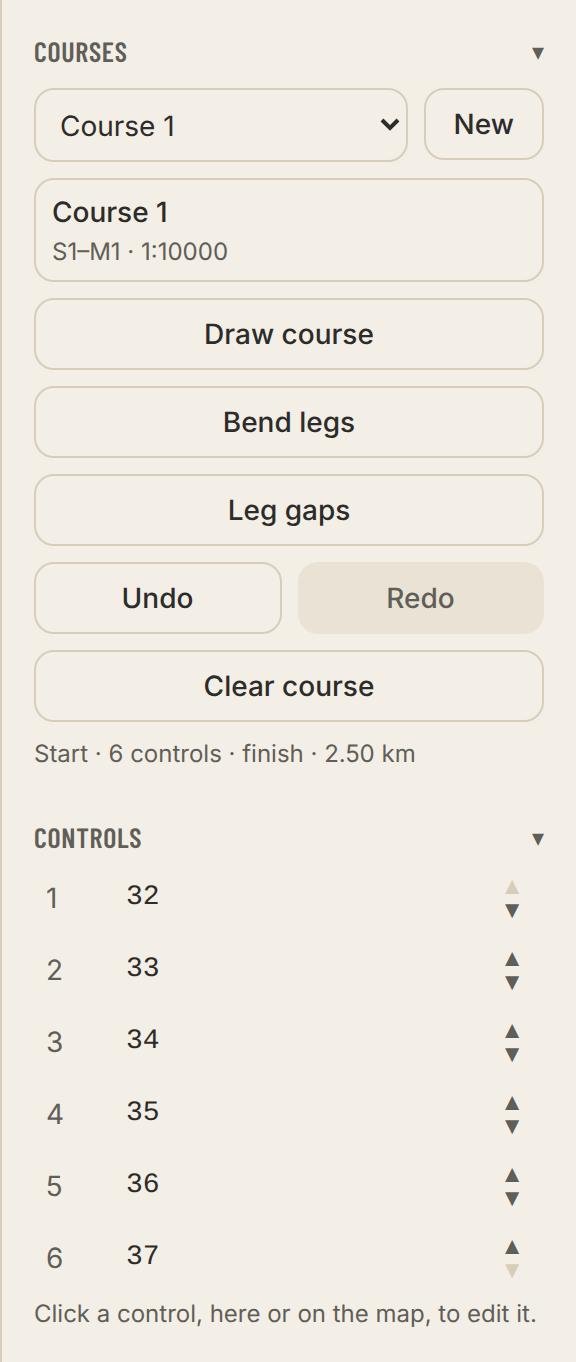
What most courses do without is hidden until you turn on Show advanced tools at the under the gear (⚙) at the top of the left panel. The tools then appear in the toolbar. The setting only hides — whatever a course already uses is always shown.
- Place timed start
- The timed start and the taped route to the start triangle. Where the map is handed out is set in the course settings.
- Place crossing point
- A mandatory crossing, such as a gap in a fence or a bridge. Follows the direction of the course.
- Bend legs
- Drag a leg to bend it around something.
- Leg gaps
- Drag along a leg to cut a gap, so it does not hide a feature. Drag the ends of the gap to adjust it; the end you hold is hidden so the gap stays visible.
- Tapes on the leg here
- In the control dialog: the whole leg, the beginning or the end taped.
- Map exchange and map flip
- The course is split at a control. Each part is printed on its own; with a map flip on either side of the paper.